
Photo DVD Maker Support Center - FAQs about orders, registrations, functions & contact
How to fix the Photo DVD Maker program crash problems
These solutions are provided to address the following problems:
>> Photo DVD Maker crashes upon starting up. An error message reads "The Photo DVD Maker program has stopped working".
>> Photo DVD Maker crashes. The error message reads "Error while unpacking program, Code 2. Please report this to author."
>> Photo DVD Maker crashes when you add photos to the program.
>> Photo DVD Maker crashes during the process of burning a slideshow DVD
>> And get error message refers to mfc42.dll
Please try the following solutions to fix the photo slideshow program crash problem.
Solution 1: Reinstall Photo DVD Maker
Some times the updates of your Windows or security software will break down the way Photo DVD Maker works. Or the program files of Photo DVD Maker could be corrupted due to unknown operations or installation of other programs.
In this case, please download a new copy of setup file from our website to reinstall Photo DVD Maker. Especially those who get the "Error while unpacking program, Code 2. Please report this to author" message, should use this solution to solve problem.
Solution 2: Update your Flash Player
Photo DVD Maker requires Adobe Flash Player OCX to render some effects. If the .ocx file is missing, Photo DVD Maker possibly will crash when you open it or add photos to it.
Please visit this link http://get.adobe.com/flashplayer with your Internet Explorer to install Flash Player for IE.
If you have other browsers installed on your computer, for example, FireFox, Safari or Opera, please install the latest version of Flash Player for the browsers as well (different browser requires different version of Flash Player!).
Visit this link http://get.adobe.com/flashplayer/otherversions to install Flash Player for other browsers, using the respective browser.
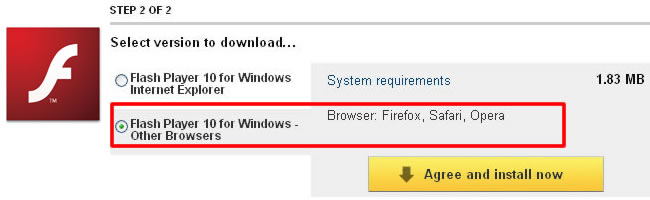
Solution 3: Turn off DEP for Photo DVD Maker
It's not unusual to see many programs stop working in Vista systems. The problem is caused by DEP, or Data Execution Prevention. DEP will block many goodwares from starting up by mistake. Sometimes Photo DVD Maker becomes the victim.
However, you can try turn off DEP for Photo DVD Maker.
1. On the desktop of you computer, right-click the "Computer" icon, and then click "Properties" from the pop-up menu.
2. Click "Advanced System Settings". Administrator permission required if you are prompted for an administrator password or confirmation, type the password or provide confirmation.
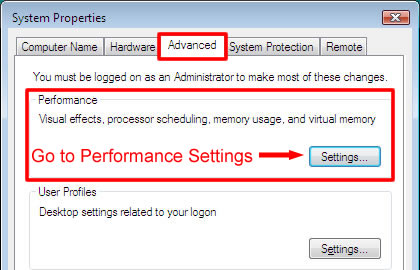
3. Now you are prompted to the "System Properties" dialogue window. Click the "Advanced" tab, under "Performance", and click "Settings".
4. Now you are prompted to the "Performance Options" dialogue window. Click the "Data Execution Prevention" tab, and then select the option "Turn on DEP for all programs and services except those I select". And then click the "Add..." button to add Photo DVD Maker to the list.
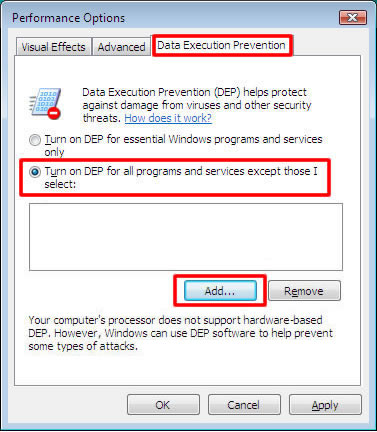
You should browse to the program files folder where you have installed Photo DVD Maker to find the executable file. Usually, it should be:
C:\Program Files\Photo DVD Maker Professional (C:\ could be D:\, E:\, etc. if the program was installed in other local disc.)
Find the executable file DVDPhotoMaker.exe, and then click Open to add it to the list.
Solution 4: Run the program under compatibility mode
Vista users can also try to run the Photo DVD Maker program under compatibility mode. Usually, it should be:
C:\Program Files\Photo DVD Maker Professional (C:\ could be D:\, E:\, etc. if the program was installed in other local disc.)
Right click on the DVDPhotoMaker.exe file, click "Properties" from the pop-up menu, select "Compatibility" tab, check the "Run this program in compatibility mode for:" option, select "Windows XP", and then click the "OK" button to save the setting. Then run the program to have a try.
Solution 5: Update mfc42.dll file
if you get error message refers to mfc42.dll, like this
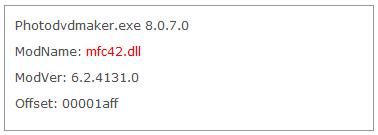
Some other slideshow software or other programs that adopt similar engines might conflict with Photo DVD Maker.
If you have installed Roxio PhotoShow, DVD Photo Slideshow or other programs that could be the conflict items, please uninstall them for the time being during which you may use Photo DVD Maker without hassles.